Showing posts with label Tutorials. Show all posts

How to Download from Dropbox

Tuesday, August 22, 2023

How to Download from Dropbox
Hey Cool Cats! Ever went to download one of my freebies from Dropbox and found yourself scratching your head thinking, "Do I really have to sign up to get this file?" Well, fret not. I've got some good news for you. You don't need an account to grab that file. 🎉 Here's a step-by-step guide on how to get it done on both your computer and phone. Ready? Let's dive in.

How to Download from Dropbox from Your Desktop:

  1. Click That Link!

    • Start off easy: Click on the Dropbox link you received. This will direct you to Dropbox's website.
  2. Spot the Download Button

    • Once you're on the page, ignore all the sign-up nags and distractions. Just focus on the top-right corner of the page. There, you should see a button labeled ‘Download’.
  3. Choose Your Download Mode

    • After clicking 'Download', a dropdown will appear. You'll see two options: "Direct Download" and "Save to my Dropbox". Since we’re avoiding sign-ups, go ahead and click "Direct Download".  (If you see a popup asking to sign up, just click it away, your download has already started)
  4. Save it!

    • Your computer will now prompt you to save the file. Choose your preferred location, hit 'Save', and wait for the magic to happen.

    Tips for dealing with .zip files: Most modern computers can natively handle .zip files. Simply double-click the file to open and view its contents. If you want to extract the files, right-click and choose the 'extract' or 'unzip' option.

How to Download from Dropbox from Cell Phone:

Note: While phones differ a bit in layout and design, the basic process is pretty much the same across the board.

  1. Tap That Link

    • Begin by tapping the Dropbox link you got in your email, message, etc.
  2. Skip the App

    • Now, Dropbox might nudge you to download their app. While it’s a cool app, that’s not why we’re here. Instead, look for an option that says 'Continue to website' or 'View in Browser'. Give that a tap.
  3. Download Time!

    • Like on the desktop, you should see a 'Download' button somewhere (often at the bottom). Tap it. A small menu will pop up, presenting a couple of options.
  4. Get the File

    • From the pop-up, choose "Direct Download". Depending on your phone, the file might start downloading automatically, or you might need to confirm where you want to save it.
  5. Accessing the File

    • Once it's done, swipe down your notification bar. You'll usually see the download progress or notification there. Once it’s finished, tap on it, and voila! Your file is ready for viewing.
       
    Handling .zip Files: Unlike most desktops, some phones don't handle .zip files natively. If you download a .zip on your phone, you might need a third-party app to open or extract it. Apps like "WinZip" or "RAR" are popular choices available on both Android and iOS.

And there you have it! You've now successfully sidestepped the whole sign-up process and have your desired file from Dropbox, whether you're on a desktop or phone. So next time you get a Dropbox link, you'll be downloading in no time. Enjoy, and happy downloading! 🚀

Thank you for stopping by and I hope that you are following Calico Collage on social media.
You can find Calico Collage on Instagram and Pinterest: @calicocollage
If you are a fan of Calico Collage, come join the Facebook Group - Fans of Calico Collage
Don't forget to become a Cool Cat and join the VIP mail list to receive exclusive freebies and coupons.

Read More

How to Make Christmas Junk Journal Clusters

Friday, November 4, 2022

Hello everyone!  I hope you are doing well.  

It's time to roll out the festive Christmas crafts! Today I created some cute little Christmas junk journal clusters. I created these darling little junk journal clusters using junk journal printables from my shop, Calico Collage. These junk journal clusters feature my newest junk journal printable, Christmas Doors. I love how simple these are to make, so let's dive right in to this tutorial on how to make Christmas junk journal clusters.

How to Make Christmas Junk Journal Clusters. 

Here is what I used to create these cute little Christmas junk journal clusters.

Christmas Doors Junk Journal Printables (I printed out the next to smallest size)
Fussy Cut Christmas Ephemera Labels Junk Journal Printables
Christmas Holiday Sheet Music Junk Journal Printables
Lace
Tea bag envelope
Distress Ink in Antique Linen
Tattered Angel's Glitter Mist in Dazzling Diamonds
Glue (Aleene's Tacky Glue)

I printed the Christmas Doors and Christmas Labels junk journal printable on 65lb (176gsm) cardstock.  The sheet of Christmas Holiday Sheet Music I printed on 24lb (90gsm) paper.

I then fussy cut the Christmas doors and Christmas ephemera labels and then gathered scrap papers, tea bags, and lace.

How to Make Christmas Junk Journal Clusters

Once I had everything I needed, I arranged my clusters on the Christmas Holiday Sheet Music as I wanted and then glued them down to the Christmas Holiday Sheet Music.

How to Make Christmas Junk Journal Clusters

I let the clusters completely dry.  I placed a few heavy books on the clusters to ensure that they dried flat.

I ripped them apart once they were dry.  I did this sloppily to add to the vintage look.  Then ripped them a little more to make them smaller.  When you do this, it is up to you how much of the back paper you want showing.

How to Make Christmas Junk Journal Clusters

I then inked the edges with the Distress Ink.

How to Make Christmas Junk Journal Clusters

Then I sprayed them lightly with Tattered Angels. A small amount goes a long way! I think the hint of glitter makes them really stand out.

How to Make Christmas Junk Journal Clusters

And there you have it! That is how I created these cute little Christmas junk journal clusters. 

How to Make Christmas Junk Journal Clusters
 
How to Make Christmas Junk Journal Clusters

How to Make Christmas Junk Journal Clusters


Thank you for stopping by and I hope that you are following Calico Collage on social media.
You can find Calico Collage on Instagram and Pinterest: @calicocollage
If you are a fan of Calico Collage, come join the Facebook Group - Fans of Calico Collage
Don't forget to become a Cool Cat and join the VIP mail list to receive exclusive freebies and coupons.

How to Make Christmas Junk Journal Clusters


Read More

How to Make Specimen Cards

Tuesday, February 1, 2022

 How to Make Specimen Cards

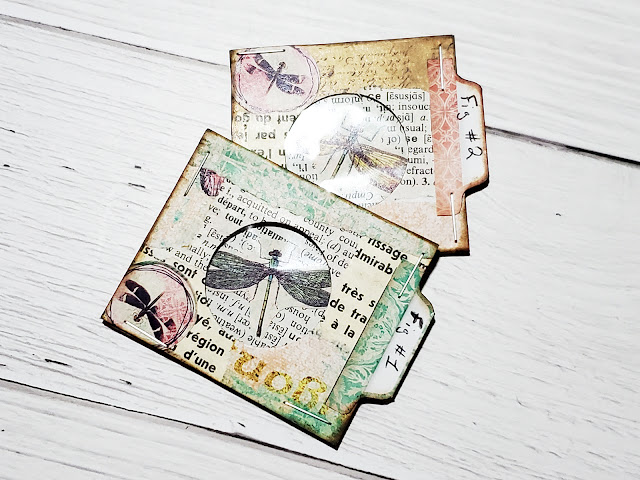
Hello everyone!  Today I would like to show you how I made these little specimen cards using pages from my newest Cut & Create Ephemera Book (that is now available on Amazon), some old papers, and a little cereal box.  So please keep reading if this is something you would like to know how to do.

How to Make Specimen Cards

Here is what I used:

Small Cereal Box
Cut & Create Dragonfly Delight Ephemera Book
2 page tabs, I used 2 that is in the Cut & Create Ephemera Book
Old Ephemera Paper
Washi Tape
Glue Stick
Cellophane
1.25 Hole Punch
Scissors
Stapler

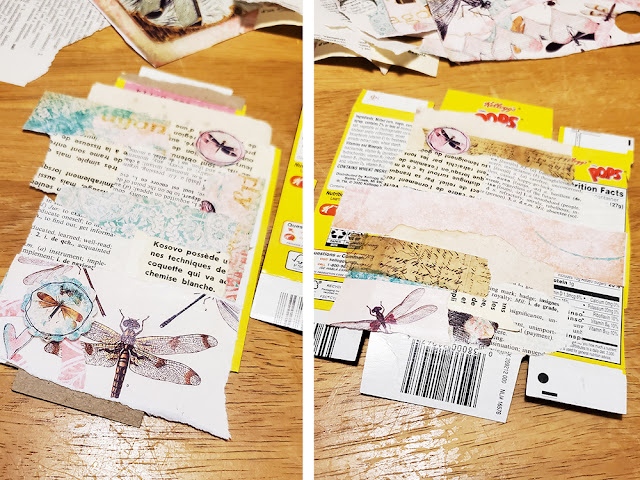
First take apart the cereal box and flatten it as much as you.

How to Make Specimen Cards


Select the ephemera you plan to use.  I used 2 pages from the Cut & Create Ephemera Book along with 1 book page & a dictionary page.  Tear the ephemera into small strips and glue it in no particular order but make sure to cover as much of the box as you can.

How to Make Specimen Cards


Now trim off the sides of the box, leaving about a 2.5 inch wide strip.  I trimmed where the box was originally folded. Now fold it in half.

How to Make Specimen Cards


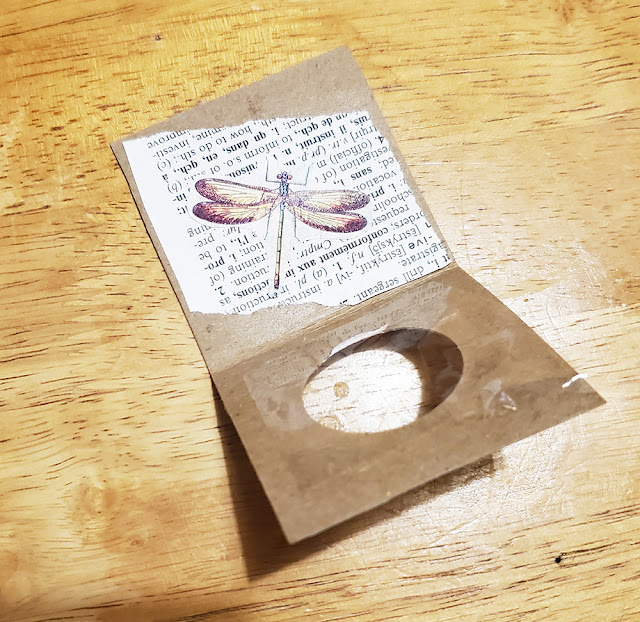
Take your 1.25 Hole Punch and punched a hole in 1 side of the folded strip.

How to Make Specimen Cards


Now turn the strip over, glue a small piece of the cellophane over the hole you just punched.  While that dries on the opposite side glue a piece of ephemera and top it with a little dragonfly from the Cut & Create Ephemera Book.

How to Make Specimen Cards


Write "Fig #1" and "Fig #2" on the page tabs & attach them to 1 side of the folder card.
Now close the cards & secure them shut using the stapler.

How to Make Specimen Cards

You can get 2 small specimen cards from one mini cereal box.  The finished specimen cards mesure approximately 2 inches in size.

Thank you for stopping by and I hope that you are following Calico Collage on social media.
You can find Calico Collage on Instagram and Pinterest: @calicocollage
If you are a fan of Calico Collage, come join the Facebook Group - Fans of Calico Collage
If you are a BIG fan, make sure you are on the VIP mail list to receive exclusive freebies and coupons.

How To Make Specimen Cards


Read More

Shabby Chic Heart Cards

Sunday, January 16, 2022

Shabby Chic Heart Cards

Hello,
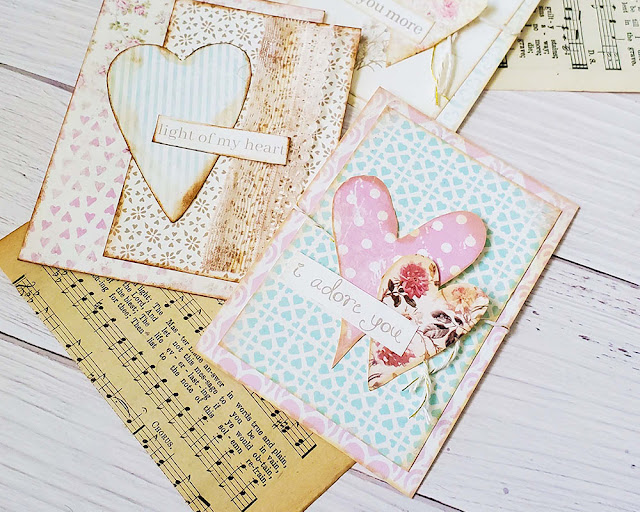
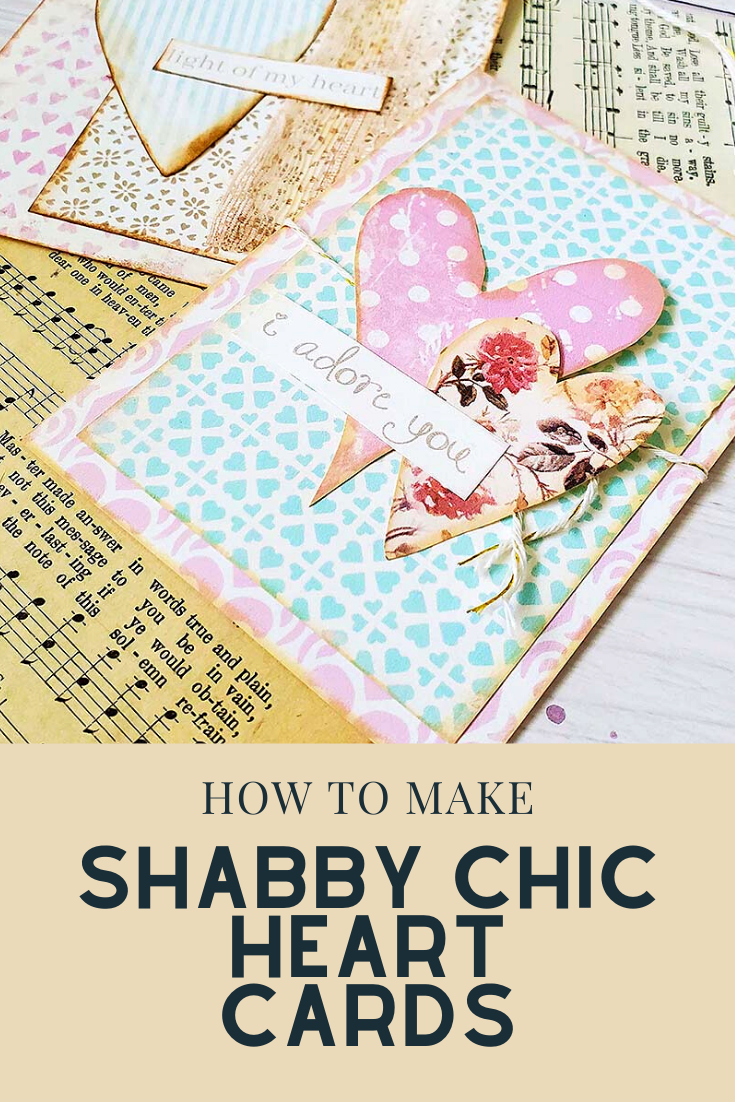
Today I'd like to tell you about these lovely layered shabby chic heart cards.
I made these using one of Calico Collage's newest printable kits, as well as some string and lace.
These adorable little cards would make an ideal Valentine's Day gift for your Galentine.

How I Made These Shabby Chic Heart Cards  

What you need:

Calico Collage's Layered Heart Cards
Glue Stick
Scissors
Twine or Lace
Distressing ink

1st you will need to print out your layered heart card from Calico Collage.  This kit includes enough to create 6 to 8 cards.  I did print these out on 32lb cardstock.

Select 1 large card, 1 smaller card, 1 to 2 heart & 1 word phrase from the kit.  Ink all the edges of your paper.

Experiment with how you want to layer your card.  Keep in mind that the smaller card does not have to be perfectly in the center of the larger card; feel free to place it at an angle or even off to the side.  When you're satisfied with how your layers look, glue the smaller card to the larger card.

Now, wrap the twine or lace around the layered card.  I used tacky glue to keep the twine in place, but I later realized I didn't need to do so after adhering my hearts on top.

Glue your heart(s) over the twine, followed by the word phase.   And you are done!  Your adorable cards are ready to give or use as a journaling card in your junk journal!

How to make shabby chic heart cards

How to make shabby chic heart cards


Thank you for stopping by and I hope that you are following Calico Collage on social media.
You can find Calico Collage on Instagram and Pinterest: @calicocollage
If you are a fan of Calico Collage, come join the Facebook Group - Fans of Calico Collage
If you are a BIG fan, make sure you are on the VIP mail list to receive exclusive freebies and coupons.

How to make Shabby Chic Heart Cards
 

Read More

Printer Settings for Printables

Thursday, December 2, 2021

Printer Settings for Your Printables

I'm going to cover just the fundamentals of printer settings in this post so you can better understand why and how your junk journal papers and scrapbook ephemera print the way they do.
If you want to learn more about this topic, keep reading.

First things first, how do you find your printer settings?

Head on over to your Settings > Devices > Printers & Scanners or Control Panel > Hardware and Sound > Devices and Printers. 
You can also search for "printer" in your windows 10 search bar at the bottom of your screen.

As for me, I change my settings with every print I make according to my project.  When I right click the file(s) I want to print I select print then click on Options...>Printer Properties...

Printer Settings for Printables

Your settings window may look a little different than this, but you will see a "paper type" and "print quality" options.  This is all you need to change.  As you get more comfortable with your printer you can change up other settings.

What printer setting should you use for your printable?

Now that you know how to change your printer's settings, it's time to have some fun.

Please note that for this little test I used the same paper and printer for all the pages
I am using the basic of basic paper - Xerox 20lb paper with a brightness of 92
I am using a HP Envy Photo 7155 printer (I love this printer because of the ink subscription program)
I'm using the same printable junk journal paper from the Winter Songs junk journal paper set from Calico Collage's Etsy shop

Printer Settings for Printables

You can clearly see the difference between the junk journal papers with the a simple change of the settings.

Lets look a little closer at the individual pages.

Printer Settings for Printables
This page settings were Plain Paper + Normal Print. (the default setting for so many printers)
It's very light, and it's hard to see the image's fine details, but I can still read the decorative text.  This setting would be extremely useful for someone creating a vintage junk journal or worn styled shabby chic project.

Printer Settings for Printables
This page settings were Plain Paper + Best Print.
This is my preferred setting.  When you select Best Print, it will take a little longer for your printer to print.  This is due to the fact that it is printing more finer details of the design and using more ink to do so.  This is why the print appears darker.  This, I believe, is a more happy medium print setting that is very universal.

Printer Settings for Printables
This page settings were HP Photo Paper + Best Print.
Oh my isn't that much richer, but still so pretty.  The reason why this printed much darker is because the printer thinks it is printing on heavy duty glossy paper, so it is using more ink.  This setting does take a lot longer to print because it is making sure to get all the fine details.  I wouldn't suggest this setting if your digital downloads are already dark in color, by doing so may drown out the over all design.

What I want you to take from this.

Don't be afraid about changing up your settings.  And do not feel you have to use the type of paper you selected.  I used the same 20lb paper in all these tests.  Play and have fun!

***

Thank you for stopping by and I hope that you are following Calico Collage on social media.
you can find Calico Collage on Instagram and Pinterest: @calicocollage
If you are a fan of Calico Collage, come join the Facebook Group - Fans of Calico Collage
If you are a BIG fan, make sure you are on the VIP mail list to receive exclusive freebies and coupons.

Printer Settings for Printables


Read More

How to Print on Tracing Paper for Junk Journals

Monday, March 29, 2021

How To Print On Tracing Paper

Hello everyone!  Today I would like to show how I print on tracing paper.  I love using tracing papers in my junk journals for that added little something extra.  I love the look of a busy pattern printed on tracing paper then layered over a less busy printed page.  I also love printing elements on tracing paper to fussy cut out and layer to create a new embellishment.  Using printed tracing paper can really change the whole feel of a collage or journal page!  Keep on reading if this is something that you are interested in trying!

How To Print on Tracing Paper

What you need:

  • A printer you are familiar with and can change the paper settings. I am using a HP Envy Photo 7155
  • Tracing paper that is 8.5x11 inches, normally this is found in the stationery isle with crayons, markers and so on.
  • A digital image, for this I am using pink butterflies from my shop, Calico Collage

First, take a sheet of tracing paper and place it in the paper cartage of your printer.  While trying this my self for the 1st time I learned that I needed to have regular paper in my paper cartage and place the tracing paper on top, if I didn't have the regular paper there my printer would state I was out of paper.  

Once the paper is there it is time to change the paper type setting.  Not all printers are the same, so your printer may saying something different but the bottom line is to change the paper setting to a light paper weight.  


How to Print on Tracing Paper
 
Lastly select the file you would like to print and follow the prompts like normal.

Now you should have a pretty printed sheet of tracing paper just ready for your to cut and craft with!

How to Print on Tracing Paper
 
I created cute little embellishments with the butterflies.  I love that you can see a hint of the ephemera layered behind it.

How to Print on Tracing Paper

Thank you for stopping by and I hope that you are following Calico Collage on social media.
you can find Calico Collage on Instagram and Pinterest: @calicocollage
If you are a fan of Calico Collage, come join the Facebook Group - Fans of Calico Collage
If you are a BIG fan, make sure you are on the VIP mail list to receive exclusive freebies and coupons.

How to Print on Tracing Paper


Read More

How to convert your junk journal JPGs to PDFs

Saturday, March 20, 2021

The newest update from windows 10 has been quite a show stopper for us junk journal artists.  The new update messes with the way the computer talks to the printer and only prints some of the image if any of it.  I've had many customers come to me asking about it and I feel bad that I can't walk them through how to fix it.  But in the mean time I can offer a little band-aid.  The update still allows the users to print PDFs, so this post will show how to convert your beautiful JPGs into PDFs.

How to Convert Junk Journal JPGs to PDFs

(Edited to add on 3/21/2021 - I understand that rolling back the update will fix the issue as well, but I feel this fix is for those that 100% understand their computer.  This kind of complex "fix" could result in making the situation worse if the user doesn't understand the process)

How to convert Junk Journal JPGs to PDFs in Windows 10


1. Open the JPG by double-clicking on the image. (I'm using a page from the Shabby Chic Junk Journal Kit)

2. Once it's loaded, press CTRL+ P to print, or you can click the print icon at the top-right. 

How to Convert Junk Journal JPGs to PDFs


3. In the menu that appears you will be able to choose where you want to print your picture.  Normally your printer would be selected here, but that needs to be changed to "Microsoft print to PDF" then click print.

How to Convert Junk Journal JPGs to PDFs

How to Convert Junk Journal JPGs to PDFs


4. When you press "print", you will be asked where you want to save the new PDF file.  I've pick the same folder where I had this file located.  Name your new PDF file and hit enter.

How to Convert Junk Journal JPGs to PDFs
 

Your JPG should now be saved as a PDF and you can print as normal.

I hope that this helps you out a bit.  I'm sure Microsoft is rushing to try to fix this problem and soon (fingers crossed) you can print your JPGs normally once again.

*-*

Thank you for stopping by and I hope that you are following Calico Collage on social media.
You can find Calico Collage on Instagram and Pinterest: @calicocollage
If you are a fan of Calico Collage, come join the Facebook group - Fans of Calico Collage

Join now so you do not miss out on flash sales, special coupons & freebies! 
  

How to convert your junk journal JPGs to PDFs


Read More

How to Make Junk Journal Tags

Sunday, March 7, 2021

How To Make Junk Journal Tags

Hello everyone!  Today I would like to share a little project I did using my new set of printables, Simple Tags.  I wanted offer a set of versatile tags in my shop and these are just that.  I turned them into Shabby Chic tags, but these could easily become Steampunk, Grunge, Retro..the possibilities are endless.  

This set of tags comes with 3 printable papers with a total of 18 tags.  Each tag is approx 2.7 x 5 inches.


How To Make Junk Journal Tags

What you need to make these junk journal tags

How to Make Junk Journal Tags

I wanted my tags to be sturdy so I printed out all of my printables on 65lb card stock paper.

The 1st thing I did was cut out 3 of the tags from the Simple Tags printable.  I picked the 3 with the vintage post card script down the side.  I liked them for this off set layout.

Once I cut them out I inked up the edges with my blending sponge and ink pad.  I then tore 2 small pieces off from the Spring Hues pattern paper and glued them down kinda in an L shape in the bottom corner of the tag. I wanted to add just a small pop of color to the tag itself before layering up.

How to make junk journal tags

Now with my tag the way I like I started layering.  I 1st took a small piece of tulle and positioned it like a fan at the bottom of the tag where I placed the Spring Hues pattern paper.  I glued it in down in the corner.  I did want some lift to these tags and to achieve this I used my hot glue gun.  Then I added another little bit of glue and placed one of the circle ephemera pieces from the Blooming Spring kit down over the tulle.  

With the tulle and ephemera glued down, I inked up the edged and the tulle.  I didn't like how clean the tulle looked for these tags.  Thinking back on this I could have used another color tulle or a different color of ink to add more color.  

I placed the cute little butterfly on the round ephemera and glued it in place.

Lastly I glued down a strip of lace on the other side of the tag by the Post Card script.

How to make junk journal tags

Here is a quick video of my progress


Thank you for stopping by and I hope that you are following Calico Collage on social media.
You can find Calico Collage on Instagram and Pinterest: @calicocollage
If you are a fan of Calico Collage, come join the Facebook group - Fans of Calico Collage

Join now so you do not miss out on flash sales, special coupons & freebies! 
  

How To Make Junk Journal Tags


Read More

Junk Journal Embellishments with Printable Ephemera

Wednesday, February 24, 2021


Junk Journal Embellishments with Printables

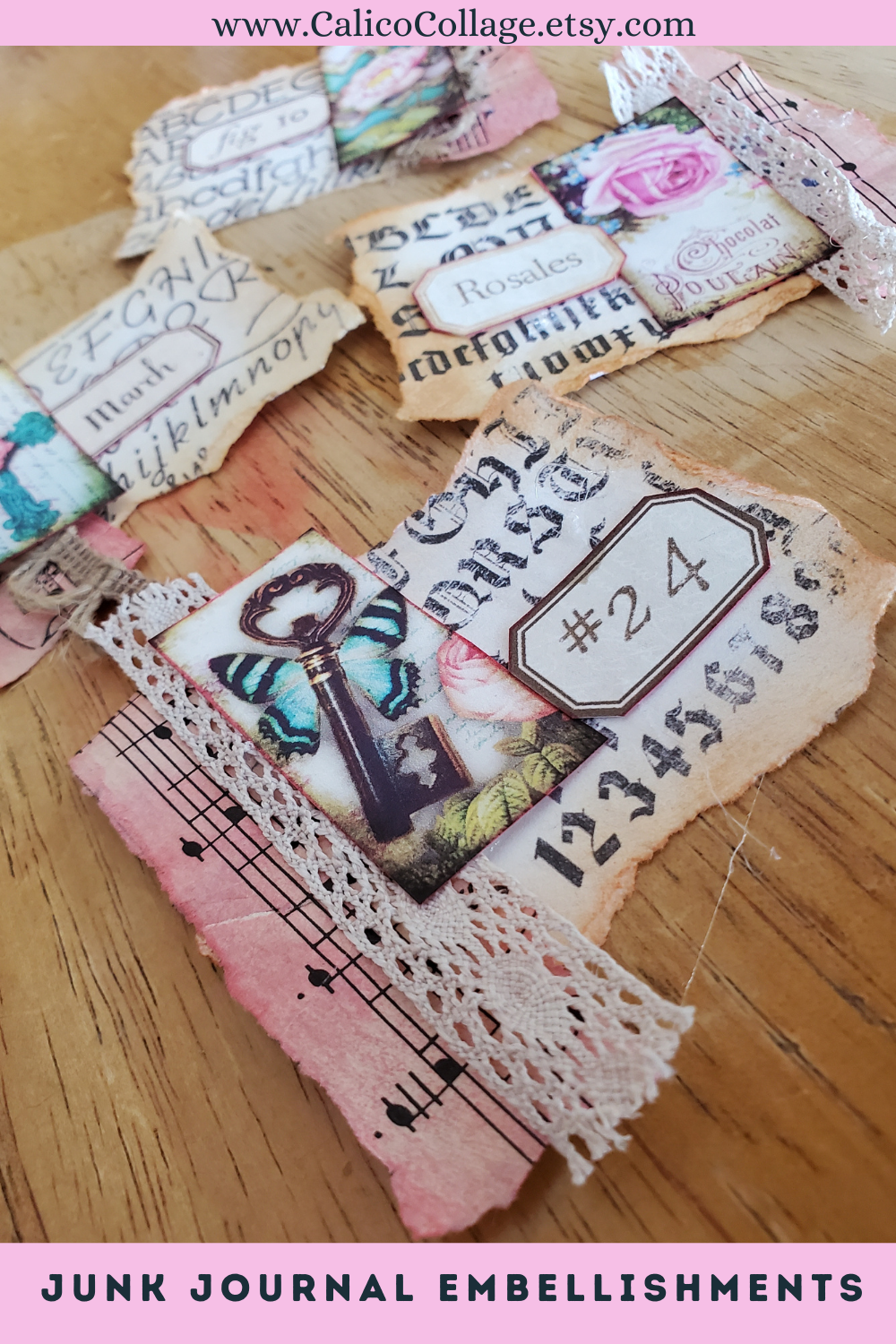
Hello everyone!  When creating printables I test print them to make sure they look just as great printed as they do when I created them in photoshop.  So today I decided to play around with a few of the test prints that I have laying around.  I wanted to make cute little cluster ephemera embellishments...yea, that is what I'll call them.  They could also be used as altered paperclips or even small pockets in a junk journal.

What I used to create them:


Junk Journal Embellishment
 

The first thing I did was take one of the cards from the Vintage Typed pack, rip along the edge of the whole card & then ripped down the middle.  Now my card is about about 2 3/4 inches by 2 1/2 inches.

Then I took my blending sponge and inked up the edge to give it a more distressed look.

Junk Journal Embellishment

With the base now inked up and looking vintage-ly awesome, I ripped up a small piece of the sheet music & inked it up as well.  I didn't want this little piece of ephemera to look so neat so I wrinkled it up.  I glued it down first & then a small piece of lace on top of it.

Junk Journal Ephemera
 
Lastly I layered it up with an image from the Pretty Small Ephemera Pack & a Small Vintage Label.

Here is a very quick little video of my progress:


Thank you for stopping by and I hope that you are following Calico Collage on social media.
You can find Calico Collage on Instagram and Pinterest: @calicocollage
If you are a fan of Calico Collage, come join the Facebook group - Fans of Calico Collage

Join now so you do not miss out on flash sales, special coupons & freebies! 
  

Junk Journal Embellishment Pin


Read More